Digital images
Level 0 · Chapter 3 · ⏱️ ~70 min read · Prerequisites: Setting up your vision toolkit
This chapter follows light from a scene to a file on disk. You'll see how a sensor turns photons into numbers, how a color filter and demosaicing produce color, what sampling and quantization do, how color spaces and gamma encoding work, and what image formats such as PNG, JPEG, WebP, and RAW store. Every step is simulated in code, so you can see exactly what it does to the pixels.
Why it matters
Wei built a model that detected rust on steel bridges from inspection photos. The training photos came from a DSLR and were saved as high-quality JPEGs. It worked well.
Then the inspection company switched to drones. The drone camera saved JPEGs at a much lower quality setting to fit more photos on its card, and its processing applied stronger sharpening. Rust detection recall fell from 91% to 63%. The model had learned that rust looks like fine, orange-brown speckled texture, and the drone's JPEG compression smeared exactly that kind of fine color detail into blocky patches.
Nothing in the code had changed. What had changed was everything that happened before the code: the sensor, the camera's processing, and the compression. To build reliable vision systems, you need to know what those steps do to the numbers. A pixel value isn't "the color of the object". It's the end result of optics, a sensor, a color filter, an algorithm that guesses missing colors, a brightness curve, rounding, and compression.
Concepts
Light and sensors
Light is electromagnetic radiation. Human eyes respond to wavelengths from roughly 380 nm (violet) to 750 nm (red). A camera lens focuses light from the scene onto an image sensor, a grid of millions of tiny light-sensitive cells called photosites (each one becomes a pixel).
Each photosite is a photodiode. During the exposure, incoming photons knock electrons loose, and the photosite collects them. More light means more electrons. At the end of the exposure, the camera measures each photosite's charge and converts it to a number with an analog-to-digital converter (ADC). Most sensors produce 10 to 14 bits per photosite: integers from 0 up to 1,023 or 16,383.
Three properties of this process show up in every image you'll process:
- The response is linear. Twice as many photons produce (approximately) twice the number. This is different from how we perceive brightness, which is why gamma encoding exists (covered below).
- There is noise. Photons arrive randomly, so even a perfectly uniform gray wall gives slightly different counts at each photosite. This shot noise follows a Poisson distribution, whose standard deviation is the square root of the mean count. Dark areas collect fewer photons, so they have relatively more noise, which is why night photos are grainy. Electronics add read noise on top.
- Photosites are colorblind. A photodiode counts photons of any visible wavelength. It can't tell red from blue.
The Bayer filter and demosaicing
To capture color with colorblind photosites, almost every camera puts a color filter array (CFA) on top of the sensor: a mosaic of tiny red, green, and blue filters, one per photosite. Each photosite then measures only the light of one color.
The most common pattern is the Bayer filter, patented by Bryce Bayer at Kodak in 1976. It repeats a 2 × 2 tile with one red, two green, and one blue filter:
This tile is called RGGB, read from the top-left 2 × 2 block row by row. Other sensors start the tile at a different corner: BGGR, GRBG, or GBRG. Green gets half of all photosites because human vision is most sensitive to green light, which carries most of the detail we perceive.
The sensor's raw output is a single-channel image where each pixel holds one color measurement. A full-color image needs three values at every pixel, so the camera has to estimate the two missing colors at each position from the neighbors. This is demosaicing.
The simplest method is bilinear demosaicing: estimate each missing value as the average of the nearest measurements of that color. At a red photosite, the missing green is the average of the 4 green neighbors (up, down, left, right), and the missing blue is the average of the 4 diagonal blue neighbors.
This can be written as a convolution. Make one sparse plane per color, holding the measured values where that color was sampled and zeros elsewhere. Then convolve (a weighted sum over each 3 × 3 neighborhood, explained fully in Convolution and filtering) the green plane with \(K_G\) and the red and blue planes with \(K_{RB}\):
Check that \(K_G\) does the right thing. At a green photosite, the center weight \(4/4 = 1\) copies the measured value, and the 4 direct neighbors are not green (their sparse values are 0), so the result is exactly the measurement. At a red photosite, the center is 0 in the green plane, and the 4 direct neighbors are green, each weighted \(1/4\): their average. \(K_{RB}\) works the same way. At a blue photosite, the red plane has values only at the 4 diagonals, each weighted \(1/4\). At a green photosite in a red row, red is present only left and right, each weighted \(2/4\).
Bilinear demosaicing blurs edges and creates color fringes, called zipper artifacts and false color, wherever the scene has fine detail. Real cameras use smarter, edge-aware algorithms that interpolate along edges rather than across them. You'll simulate both below.
The camera pipeline
The demosaiced image is still far from the JPEG you get out of a phone. The camera's image signal processor (ISP) runs a whole pipeline:
flowchart LR
    A["Sensor<br/>(linear, 12-14 bit,<br/>one color per pixel)"] --> B["Black level<br/>and white balance"]
    B --> C["Demosaic"]
    C --> D["Color correction<br/>(camera RGB to sRGB)"]
    D --> E["Denoise and<br/>sharpen"]
    E --> F["Tone curve<br/>and gamma"]
    F --> G["Quantize to 8 bits"]
    G --> H["JPEG / HEIC<br/>compression"]
White balance scales the red, green, and blue channels so that a white object looks white under any light: incandescent bulbs are orange and shade is blue. Color correction converts the sensor's own color response to a standard color space. Tone mapping and gamma compress the linear values into a perceptually even scale. Each step changes the numbers, and every camera model makes slightly different choices. That's why a model trained on one camera can stumble on another.
Sampling: from a continuous scene to a grid
The scene in front of the camera is continuous: brightness varies smoothly over space. The sensor measures it only at a grid of points (more precisely, it averages over each photosite's small area). This is sampling. The spacing between samples is the pixel pitch, typically 1–6 micrometers on modern sensors.
Sampling loses information whenever the scene has detail finer than the grid can represent. Think of a picket fence photographed from far away. If the gaps between pickets are narrower than two pixels, the sensor can't record "picket, gap, picket, gap". Worse, the fine pattern doesn't just disappear: it shows up as a false, coarser pattern, a wavy moiré. This is aliasing: high-frequency detail masquerading as low-frequency detail.
The rule that governs this is the sampling theorem: to represent a pattern that repeats every \(p\) pixels, you need at least 2 samples per repetition (\(p \geq 2\)). A stripe pattern of alternating black and white pixels (a period of 2) is the finest a grid can represent. Level 1's frequency domain chapter derives this properly with Fourier transforms.
Aliasing matters most when you downsample an image. Taking every 4th pixel is sampling again, at a coarser grid, and fine detail aliases. The fix is to blur (low-pass filter) first, or equivalently to average each block of pixels, which is what antialiased resizing does. That's the difference between OpenCV's INTER_NEAREST or INTER_LINEAR and INTER_AREA when shrinking, which you met in the previous chapter.
Quantization
The sensor's electrical signal can take any value, but a computer stores whole numbers. Rounding a continuous value to one of a fixed set of levels is quantization. With \(b\) bits, there are \(2^b\) levels.
Let the signal range be \([0, R)\) and the number of levels \(L = 2^b\). The quantization step is \(\Delta = R / L\). A value \(x\) is mapped to the level index \(q = \lfloor x / \Delta \rfloor\) and reconstructed at the middle of its interval:
The quantization error \(e = \hat{x} - x\) lies in \([-\Delta/2, \Delta/2]\). For a signal that varies a lot compared to \(\Delta\), the error is spread evenly over that interval, so it behaves like uniform noise. The variance of a uniform distribution on \([-\Delta/2, \Delta/2]\) is
So the RMS (root-mean-square) quantization error is \(\Delta / \sqrt{12} \approx 0.29\,\Delta\).
How good is that compared to the signal? Take a full-range signal spread evenly over \([0, R)\). Its variance is \(R^2/12 = (L\Delta)^2/12\). The signal-to-noise ratio (SNR), the ratio of signal variance to noise variance, is
In decibels (dB, \(10 \log_{10}\) of a power ratio), that's \(10 \log_{10} 2^{2b} = 20 b \log_{10} 2 \approx 6.02\,b\) dB. Each extra bit adds about 6 dB of SNR, or halves the RMS error. An 8-bit image has a quantization SNR of about 48 dB.
At 8 bits, the steps are fine enough that you usually can't see them in a photo. With fewer bits, smooth gradients break into visible bands, called false contours or banding. You'll see this at 1, 2, 4, and 8 bits below.
Resolution and bit depth
Spatial resolution is how many samples an image has: its width and height in pixels. A 12-megapixel phone image might be 4000 × 3000. More pixels can capture finer detail, but only if the lens is sharp enough and the scene is in focus; a blurry lens with a 50-megapixel sensor just records the blur in more detail.
Be careful with DPI (dots per inch). It's a printing hint stored in the file's metadata, saying how large to print the image. It doesn't change the pixels at all. A 1000 × 1000 image "at 300 DPI" and "at 72 DPI" are identical arrays.
Bit depth is the number of bits per channel per pixel:
| Bit depth | Levels per channel | Where you see it |
|---|---|---|
| 1 | 2 | binary masks, fax, scanned text |
| 8 | 256 | almost all JPEGs, PNGs, screens, and datasets |
| 10 | 1,024 | HDR video, some phone HEIC photos |
| 12–14 | 4,096–16,384 | camera RAW files |
| 16 | 65,536 | scientific and medical images, 16-bit PNG and TIFF |
| 32 (float) | continuous | HDR (high dynamic range) formats such as OpenEXR, intermediate computations |
Dynamic range is the ratio between the brightest and darkest values a sensor or format can represent usefully, often counted in stops (factors of 2). A real outdoor scene can span 20 stops or more from deep shadow to sky; a good sensor captures around 12–14 stops; an 8-bit gamma-encoded JPEG represents roughly as much as a display can show. That's why phones combine several exposures into an HDR photo.
Grayscale and color
Human color vision is trichromatic: the retina has three kinds of cone cells, sensitive to long (red), medium (green), and short (blue) wavelengths. Any color you see is your brain's interpretation of three cone responses. That's why three numbers per pixel are enough to reproduce colors convincingly on a screen, and why cameras and displays use red, green, and blue.
A grayscale image has one value per pixel: brightness only. Converting color to gray means combining the three channels with weights that match how bright each color looks to us. Green looks brightest, then red, then blue. The weights used by OpenCV and Pillow come from the Rec. 601 television standard:
The primes mark gamma-encoded values (explained below), and \(Y'\) is called luma. The HDTV standard Rec. 709, used for sRGB, has weights \(0.2126\), \(0.7152\), \(0.0722\), which scikit-image uses (rounded slightly). Strictly, these weights should apply to linear light to give true luminance \(Y\); applied to gamma-encoded values they give luma, a close and much cheaper approximation. Every library computes luma by default.
Why keep color at all? For many tasks, color is a strong cue: ripe versus unripe fruit, rust on steel, skin lesions, traffic lights. For others, such as reading text or finding edges, gray is enough, and it's a third of the data.
Color spaces
A color space is a way of describing colors with numbers. RGB is natural for cameras and screens, but it's often awkward for analysis, because brightness and color are tangled together: a red apple in shadow has completely different R, G, and B values from the same apple in sunlight. Other color spaces separate brightness from color, or match human perception better.
RGB describes a color as amounts of red, green, and blue light, mixed additively. It's the native space of sensors and displays. The specific red, green, and blue primaries matter; the standard for the web, most monitors, and most image files is sRGB.
HSV (hue, saturation, value) rearranges RGB into a cylinder that matches how people describe colors:
- Hue \(H\) is the "type" of color, as an angle around the color wheel: 0° red, 120° green, 240° blue.
- Saturation \(S\) is how pure the color is, from gray (0) to vivid (1).
- Value \(V\) is how bright it is: the largest of the three channels.
With \(R, G, B \in [0, 1]\), \(M = \max(R, G, B)\), \(m = \min(R, G, B)\), and the chroma \(C = M - m\):
Hue is undefined for grays (\(C = 0\)); libraries set it to 0. HSV is popular for color-based segmentation: "find the orange pixels" becomes a range on \(H\), mostly independent of lighting, which mainly changes \(V\). You'll do this in Level 1. Its weakness is that it's not perceptually uniform: equal steps in \(H\) don't look like equal changes in color, and \(V\) isn't perceived brightness (pure blue and pure yellow both have \(V = 1\)).
YCbCr separates luma from color difference: \(Y'\) is the luma from above, \(C_b\) measures "how blue" and \(C_r\) "how red" relative to the luma. The full-range version used in JPEG files, with 8-bit values, is
The scale factors are chosen so the color differences fit in the 8-bit range: \(0.564 = 0.5 / (1 - 0.114)\) and \(0.713 = 0.5 / (1 - 0.299)\). The 128 offset makes gray map to the middle of the range. The point of YCbCr is that human vision is far more sensitive to detail in brightness than in color. JPEG and video codecs exploit this by storing \(C_b\) and \(C_r\) at lower resolution, which is called chroma subsampling. OpenCV names this space YCrCb and orders the channels \(Y, C_r, C_b\).
CIE L*a*b* (Lab for short) was designed in 1976 to be approximately perceptually uniform: the straight-line distance between two colors roughly matches how different they look. \(L^*\) is lightness from 0 (black) to 100 (white), \(a^*\) runs from green (negative) to red (positive), and \(b^*\) from blue (negative) to yellow (positive). Converting from sRGB takes three steps:
- Linearize each channel by undoing the sRGB gamma (formula below).
- Convert to CIE XYZ, a device-independent space based on human color matching, with a \(3 \times 3\) matrix: \([X, Y, Z]^\top = \mathbf{M}\,[R, G, B]^\top_{\text{linear}}\).
- Apply a cube-root compression relative to the white point \((X_n, Y_n, Z_n)\), the XYZ of reference white (D65 daylight for sRGB):
The cube root models the eye's compressed response to brightness, and the linear piece near zero avoids an infinite slope. The color difference \(\Delta E^*_{ab} = \lVert (L^*_1, a^*_1, b^*_1) - (L^*_2, a^*_2, b^*_2) \rVert_2\) is a standard measure of how different two colors look. As a rule of thumb, a \(\Delta E\) around 2–3 is just noticeable side by side. (Later formulas such as CIEDE2000 refine this.) Lab is the right space for measuring color differences, color transfer, and clustering colors.
| Space | Channels | Strength | Typical use |
|---|---|---|---|
| RGB | R, G, B | native to sensors and screens | storage, display, neural network input |
| HSV | hue, saturation, value | intuitive; hue is fairly robust to shading | color thresholding, simple color picking |
| YCbCr | luma, two color differences | separates brightness from color cheaply | JPEG, video, skin detection |
| Lab | lightness, green–red, blue–yellow | approximately perceptually uniform | color differences, color transfer, clustering |
| Grayscale | luma | one channel, a third of the data | edges, text, many classical algorithms |
Gamma and sRGB
Here's a puzzle. The sensor is linear, but your perception isn't. If you double the photons from a light, it doesn't look twice as bright. Perceived brightness grows roughly like a power of the physical intensity (often approximated by a cube root, as in \(L^*\) above), so you're much more sensitive to differences between dark tones than between bright ones.
Now suppose you store linear intensities in 8 bits. Codes are spaced evenly in physical light, so in the darks, where your eye is most sensitive, each step is a big visible jump, causing banding. In the brights, many codes are wasted on differences you can't see. Gamma encoding fixes this by storing a compressed value, roughly \(V = L^{1/\gamma}\) with \(\gamma \approx 2.2\), where \(L\) is linear light in \([0, 1]\). Codes become spaced roughly evenly in perceived brightness, so 8 bits are enough.
The sRGB standard (1996) defines the exact curve used by almost every image file and monitor. Decoding from an sRGB value \(V \in [0, 1]\) to linear light \(L\):
and encoding from linear to sRGB:
The short linear segment near black avoids an infinite slope at zero. Overall, the curve is close to a pure power of 2.2. Two numbers are worth remembering: an sRGB value of 0.5 (128 out of 255) is only about 21% of white's light, and 50% of white's light is stored as about 0.735 (188).
This has a practical consequence that's easy to get wrong: pixel values in ordinary image files are not proportional to light. Any operation that models physics, such as blending, blurring, resizing, adding light, or computing physical brightness, is correct only on linearized values. Averaging a black and a white pixel in sRGB gives 128, which displays darker than the true 50% mix (188). In practice, most vision pipelines (and most neural networks) operate directly on sRGB values, and that's usually fine for recognition. But when you do photometric work, such as HDR merging, physically based rendering, color calibration, or quality-sensitive resizing, linearize first.
Gamma correction as a tool
"Gamma correction" also refers to deliberately applying a power curve to brighten or darken an image's midtones, as in photo editing. That use is covered in Point operations and histograms. Here, gamma is about how values are encoded.
Image formats and compression
An image file holds a header (size, bit depth, color type), the pixel data (usually compressed), and optional metadata (EXIF camera settings and orientation, an ICC color profile, GPS location). Compression comes in two kinds:
- Lossless compression shrinks the file but lets you recover every pixel exactly. It exploits redundancy, such as neighboring pixels being similar.
- Lossy compression throws away information that humans are unlikely to notice. Files get much smaller, and the pixels you get back differ from the originals.
PNG is lossless. Each row is first passed through a prediction filter (for example, storing each pixel's difference from its left neighbor, which is usually a small number), and the result is compressed with DEFLATE, the same algorithm used by zip. PNG supports 8- and 16-bit channels, grayscale, and an alpha (transparency) channel. Use it for masks, labels, screenshots, diagrams, and any image where exact values matter. Never store segmentation masks as JPEG.
JPEG (1992) is lossy, and still the most common photo format. It works in steps, each designed around human vision:
- Convert RGB to YCbCr.
- Chroma subsampling: store \(C_b\) and \(C_r\) at half resolution in each direction (called 4:2:0), which halves the data with little visible change.
-
Split each channel into 8 × 8 blocks and apply the discrete cosine transform (DCT), which rewrites the 64 pixels as 64 coefficients of cosine patterns of increasing frequency. For a block \(f(x, y)\) with \(x, y \in \{0, \dots, 7\}\), the coefficient for horizontal frequency \(u\) and vertical frequency \(v\) is
\[ F(u, v) = \frac{1}{4}\, C(u)\, C(v) \sum_{x=0}^{7} \sum_{y=0}^{7} f(x, y) \cos\frac{(2x + 1) u \pi}{16} \cos\frac{(2y + 1) v \pi}{16} \]where \(C(0) = 1/\sqrt{2}\) and \(C(k) = 1\) for \(k > 0\). \(F(0, 0)\) is proportional to the block's average (the "DC" coefficient), and higher \(u, v\) capture finer detail. For natural images, most of the energy lands in a few low-frequency coefficients.
-
Quantize each coefficient by dividing by an entry of a quantization table and rounding. High frequencies get coarser steps, so many of them round to zero. This is the only lossy step besides subsampling, and the quality setting (1–100) scales the table.
- Losslessly compress the result (run-length and Huffman coding).
At high quality, JPEG is visually transparent. At low quality, you get characteristic artifacts: blocking (visible 8 × 8 tiles), ringing (ripples next to sharp edges), and color bleeding (smeared colors from subsampling). Re-saving a JPEG repeatedly compounds the loss, called generation loss.
WebP (Google, 2010) supports both lossy compression (based on the VP8 video codec, with larger and adaptive blocks plus prediction) and lossless compression. At the same visual quality, lossy WebP files are usually smaller than JPEGs. AVIF (based on the AV1 video codec) and HEIC (based on HEVC, the default on iPhones) compress better still and support 10-bit HDR. TIFF is a flexible container used in scientific, medical, and print work: 16-bit and floating-point data, multiple pages, many compression options. BMP is uncompressed.
RAW files (.CR3, .NEF, .ARW, .DNG) store the sensor's data before the ISP: the Bayer mosaic, linear, at 12–14 bits, plus the metadata needed to process it. They're large, but they keep everything: you can redo white balance, recover highlights, and demosaic with better algorithms. Python reads them with the rawpy package, which wraps the LibRaw library. For vision, RAW matters in low-light imaging, computational photography, and any work that needs linear, physically meaningful values.
| Format | Compression | Bit depth | Alpha | Best for |
|---|---|---|---|---|
| PNG | lossless | 8, 16 | yes | masks, labels, graphics, exact data |
| JPEG | lossy | 8 | no | photos, where size matters |
| WebP | lossy or lossless | 8 | yes | web images |
| AVIF / HEIC | lossy (mostly) | 8–12 | yes | modern photos, HDR |
| TIFF | none or lossless (usually) | 8–32, float | yes | science, medicine, print |
| RAW / DNG | none or lossless | 12–14 | no | full-quality sensor data |
In practice
Simulating a Bayer sensor and demosaicing it
Start with a full-color image, keep only the color each photosite would see under an RGGB filter, and you have a simulated raw capture.
import os
import numpy as np
import cv2
import matplotlib.pyplot as plt
from skimage import data

rgb = data.astronaut()                      # treat this as the "true scene"
H, W, _ = rgb.shape

# which color each photosite sees: RGGB
cfa = np.zeros((H, W, 3), dtype=bool)
cfa[0::2, 0::2, 0] = True                   # R at even rows, even cols
cfa[0::2, 1::2, 1] = True                   # G at even rows, odd cols
cfa[1::2, 0::2, 1] = True                   # G at odd rows, even cols
cfa[1::2, 1::2, 2] = True                   # B at odd rows, odd cols

raw = (rgb * cfa).sum(axis=2).astype(np.uint8)    # one value per pixel
print("raw mosaic:", raw.shape, raw.dtype)
print("fraction of photosites per color (R, G, B):", cfa.mean(axis=(0, 1)))
print("top-left 4x4 of raw:\n", raw[:4, :4])
print("true RGB at (0,0):", rgb[0, 0], "-> raw keeps only R =", raw[0, 0])
raw mosaic: (512, 512) uint8
fraction of photosites per color (R, G, B): [0.25 0.5  0.25]
top-left 4x4 of raw:
 [[154 103  63  51]
 [171 143 114 120]
 [201 178 168 157]
 [213 206 198 193]]
true RGB at (0,0): [154 147 151] -> raw keeps only R = 154
Now demosaic it with the bilinear kernels from the Concepts section. cv2.filter2D computes the weighted neighborhood sums:
def demosaic_bilinear(raw, cfa):
    k_g = np.array([[0, 1, 0], [1, 4, 1], [0, 1, 0]], np.float32) / 4
    k_rb = np.array([[1, 2, 1], [2, 4, 2], [1, 2, 1]], np.float32) / 4
    out = np.zeros(cfa.shape, np.float32)
    for c, k in zip(range(3), [k_rb, k_g, k_rb]):
        sparse = np.where(cfa[..., c], raw, 0).astype(np.float32)   # measured values, zeros elsewhere
        out[..., c] = cv2.filter2D(sparse, -1, k, borderType=cv2.BORDER_REFLECT_101)
    return np.clip(out.round(), 0, 255).astype(np.uint8)

def psnr(a, b):
    mse = np.mean((a.astype(np.float64) - b.astype(np.float64)) ** 2)
    return 10 * np.log10(255.0 ** 2 / mse)

ours = demosaic_bilinear(raw, cfa)
cv_bil = cv2.cvtColor(raw, cv2.COLOR_BAYER_RGGB2RGB)        # OpenCV bilinear
cv_vng = cv2.cvtColor(raw, cv2.COLOR_BAYER_RGGB2RGB_VNG)    # variable number of gradients
inner = (slice(2, -2), slice(2, -2))                        # ignore 2-pixel border effects
print("ours vs OpenCV bilinear, mean |diff|:",
      round(float(np.abs(ours.astype(int) - cv_bil)[inner].mean()), 3))
for name, im in [("bilinear (ours)", ours), ("OpenCV bilinear", cv_bil), ("OpenCV VNG", cv_vng)]:
    print(f"{name:<16} PSNR vs truth: {psnr(im[inner], rgb[inner]):.2f} dB")
print("RGGB constant equals the legacy BayerBG name:",
      cv2.COLOR_BAYER_RGGB2RGB == cv2.COLOR_BayerBG2RGB)
ours vs OpenCV bilinear, mean |diff|: 0.114
bilinear (ours)  PSNR vs truth: 30.58 dB
OpenCV bilinear  PSNR vs truth: 30.58 dB
OpenCV VNG       PSNR vs truth: 34.86 dB
RGGB constant equals the legacy BayerBG name: True
Our 15-line demosaicer matches OpenCV's bilinear mode almost exactly. PSNR (peak signal-to-noise ratio) measures how close a result is to a reference: \(\text{PSNR} = 10 \log_{10}(255^2 / \text{MSE})\), where MSE is the mean squared error per value. Higher is better, and each 6 dB means roughly half the RMS error. The edge-aware VNG algorithm gains more than 4 dB.
OpenCV's Bayer names
OpenCV's older Bayer constants, such as COLOR_BayerBG2RGB, name the pattern by the second row's second and third pixels, not the top-left 2 × 2 tile. So an RGGB sensor uses COLOR_BayerBG2RGB, which confuses everyone. OpenCV 5 adds names that spell out the top-left tile, such as COLOR_BAYER_RGGB2RGB, with the same value, as the check above shows. If you write code that must also run on OpenCV 4, use the legacy name, and always verify on a test image: a wrong pattern gives an image with swapped or garbage colors.
Zoom into a detailed region to see the artifacts:
crop = (slice(353, 417), slice(136, 200))          # a detailed 64 x 64 region
mosaic_vis = (rgb * cfa).astype(np.uint8)          # show each photosite in its filter color
panels = [rgb, mosaic_vis, ours, cv_vng]
titles = ["true color", "Bayer mosaic (RGGB)", f"bilinear: {psnr(ours[inner], rgb[inner]):.1f} dB",
          f"VNG: {psnr(cv_vng[inner], rgb[inner]):.1f} dB"]
fig, axes = plt.subplots(1, 4, figsize=(10, 2.8))
for ax, im, t in zip(axes, panels, titles):
    ax.imshow(im[crop], interpolation="nearest")
    ax.set_title(t, fontsize=9)
    ax.axis("off")
plt.tight_layout()
plt.show()
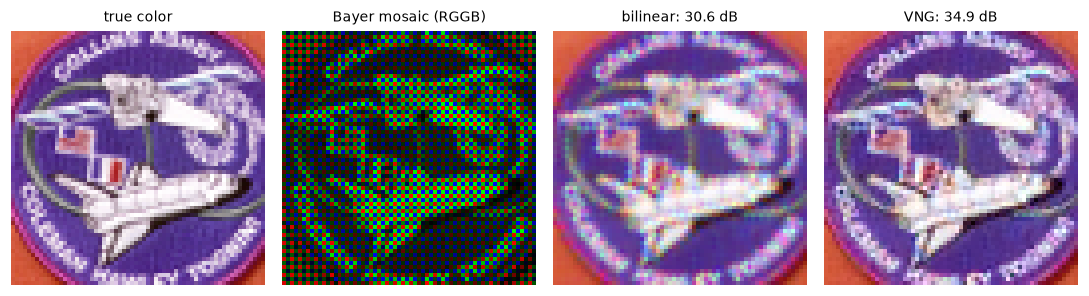
Each photosite sees one color (second panel). Bilinear demosaicing leaves colored zipper fringes along edges; edge-aware VNG reduces them.
Sampling, aliasing, and quantization
To see aliasing clearly, use a zone plate: a pattern of rings whose frequency increases with distance from the center, \(I(r, c) = \tfrac{1}{2} + \tfrac{1}{2}\cos\bigl(k\,((r - r_0)^2 + (c - c_0)^2)\bigr)\). Shrink it 4× by taking every 4th pixel, and by averaging 4 × 4 blocks:
n = 512
yy, xx = np.mgrid[0:n, 0:n] - n / 2
zone = (0.5 + 0.5 * np.cos(np.pi * (xx ** 2 + yy ** 2) / (2.2 * n))) * 255
zone = zone.astype(np.uint8)

naive = zone[::4, ::4]                                          # point sampling
area = cv2.resize(zone, (n // 4, n // 4), interpolation=cv2.INTER_AREA)   # block averaging
cam = data.camera()
cam_32 = cv2.resize(cam, (32, 32), interpolation=cv2.INTER_AREA)

def quantize(img, bits):
    step = 256 // 2 ** bits
    return ((img // step) * step + step // 2).astype(np.uint8)  # mid-point reconstruction

for b in (1, 2, 4, 8):
    q = quantize(cam, b)
    rms = np.sqrt(np.mean((q.astype(float) - cam) ** 2))
    step = 256 // 2 ** b
    print(f"{b} bits: {len(np.unique(q)):3d} levels, step {step:3d}, "
          f"RMS error {rms:6.2f}  (theory step/sqrt(12) = {step / np.sqrt(12):6.2f})")
1 bits:   2 levels, step 128, RMS error  35.06  (theory step/sqrt(12) =  36.95)
2 bits:   4 levels, step  64, RMS error  16.79  (theory step/sqrt(12) =  18.48)
4 bits:  16 levels, step  16, RMS error   4.56  (theory step/sqrt(12) =   4.62)
8 bits: 256 levels, step   1, RMS error   0.00  (theory step/sqrt(12) =   0.29)
The \(\Delta/\sqrt{12}\) formula fits closely at 4 bits and roughly at 2. At 1 bit, the error isn't uniform over each interval, because the image's values aren't spread evenly over each half of the range. At 8 bits, the error is exactly 0, not 0.29: the image was already stored as 8-bit integers, so there's nothing left to round. The uniform-error model is an approximation that works when the signal varies a lot compared to the step.
fig, axes = plt.subplots(2, 4, figsize=(10, 5.2))
row1 = [(zone, "zone plate 512 x 512"), (naive, "every 4th pixel: aliasing"),
        (area, "4 x 4 block average"), (cam_32, "camera at 32 x 32")]
for ax, (im, t) in zip(axes[0], row1):
    ax.imshow(im, cmap="gray", vmin=0, vmax=255, interpolation="nearest")
    ax.set_title(t, fontsize=9)
for ax, b in zip(axes[1], (1, 2, 4, 8)):
    ax.imshow(quantize(cam, b), cmap="gray", vmin=0, vmax=255)
    ax.set_title(f"{b} bit{'s' if b > 1 else ''}: {2 ** b} levels", fontsize=9)
for ax in axes.ravel():
    ax.axis("off")
plt.tight_layout()
plt.show()
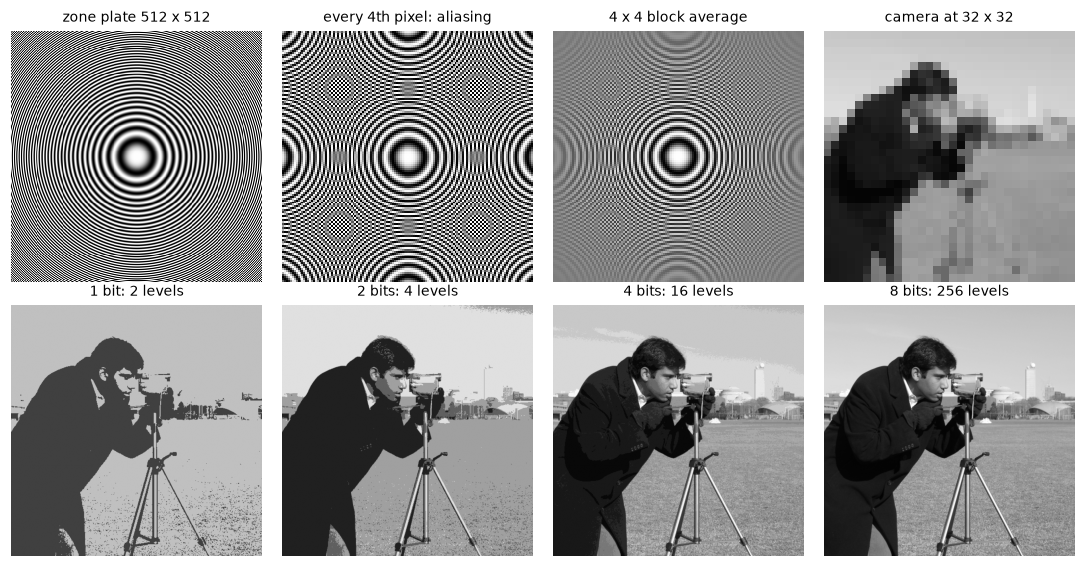
Top: point sampling turns fine rings into false patterns (aliasing), while averaging first fades them to gray. Bottom: fewer bits break smooth areas, like the sky, into bands.
Look at the outer rings in the second panel. The true rings get finer toward the corners, but the point-sampled version shows new, coarse, wrong rings there. That's aliasing: detail finer than the new grid can represent has turned into a false pattern. The block-averaged version correctly fades fine rings to flat gray, because the detail can't be represented at that size. In the bottom row, 4 bits already looks acceptable at this size, but the sky shows bands; at 1 and 2 bits, the image becomes a poster.
Color spaces by hand, checked against OpenCV
Implement HSV, YCbCr, and Lab directly from the formulas, then compare with OpenCV. OpenCV's 8-bit conventions differ from the textbook ranges, so first compare in float, where they're the same:
f = rgb.astype(np.float32) / 255.0                  # RGB in [0, 1]
R, G, B = f[..., 0], f[..., 1], f[..., 2]

# HSV
M, m = f.max(axis=2), f.min(axis=2)
C = M - m
Cs = np.where(C == 0, 1, C)                         # avoid dividing by zero for grays
H_ = np.select([C == 0, M == R, M == G],
               [0, (60 * (G - B) / Cs) % 360, 60 * ((B - R) / Cs + 2)],
               default=60 * ((R - G) / Cs + 4))
S_ = np.where(M > 0, C / np.where(M > 0, M, 1), 0)
V_ = M
hsv_cv = cv2.cvtColor(f, cv2.COLOR_RGB2HSV)          # float input: H in degrees, S and V in [0, 1]
print("HSV  max |diff|  H: %.4f  S: %.6f  V: %.6f" % (
    np.abs(H_ - hsv_cv[..., 0]).max(), np.abs(S_ - hsv_cv[..., 1]).max(), np.abs(V_ - hsv_cv[..., 2]).max()))

# YCbCr (JPEG full range), on 0-255 values
R8, G8, B8 = [rgb[..., i].astype(np.float64) for i in range(3)]
Y = 0.299 * R8 + 0.587 * G8 + 0.114 * B8
Cb = 128 + 0.564 * (B8 - Y)
Cr = 128 + 0.713 * (R8 - Y)
ycrcb_cv = cv2.cvtColor(rgb, cv2.COLOR_RGB2YCrCb).astype(np.float64)   # order: Y, Cr, Cb
ours_ycc = np.clip(np.round(np.stack([Y, Cr, Cb], axis=-1)), 0, 255)
print("YCrCb max |diff| (8-bit):", np.abs(ours_ycc - ycrcb_cv).max())

# Lab: linearize, to XYZ, then the cube-root formula
def srgb_to_linear(v):
    return np.where(v <= 0.04045, v / 12.92, ((v + 0.055) / 1.055) ** 2.4)

M_xyz = np.array([[0.412453, 0.357580, 0.180423],
                  [0.212671, 0.715160, 0.072169],
                  [0.019334, 0.119193, 0.950227]])
XYZ = srgb_to_linear(f.astype(np.float64)) @ M_xyz.T
white = np.array([0.950456, 1.0, 1.088754])             # D65 reference white
t = XYZ / white
d = 6 / 29
ft = np.where(t > d ** 3, np.cbrt(t), t / (3 * d ** 2) + 4 / 29)
L_ = 116 * ft[..., 1] - 16
a_ = 500 * (ft[..., 0] - ft[..., 1])
b_ = 200 * (ft[..., 1] - ft[..., 2])
lab_cv = cv2.cvtColor(f, cv2.COLOR_RGB2Lab)
from skimage import color
lab_sk = color.rgb2lab(rgb)
print("Lab  max |diff| vs OpenCV  L: %.3f  a: %.3f  b: %.3f" % (
    np.abs(L_ - lab_cv[..., 0]).max(), np.abs(a_ - lab_cv[..., 1]).max(), np.abs(b_ - lab_cv[..., 2]).max()))
print("Lab  max |diff| vs skimage L: %.4f  a: %.4f  b: %.4f" % (
    np.abs(L_ - lab_sk[..., 0]).max(), np.abs(a_ - lab_sk[..., 1]).max(), np.abs(b_ - lab_sk[..., 2]).max()))
HSV  max |diff|  H: 0.0018  S: 0.000030  V: 0.000000
YCrCb max |diff| (8-bit): 1.0
Lab  max |diff| vs OpenCV  L: 0.187  a: 0.417  b: 0.310
Lab  max |diff| vs skimage L: 0.0000  a: 0.0025  b: 0.0047
The hand-written HSV and YCbCr agree with OpenCV to floating-point precision and to one rounding step. The Lab agrees with scikit-image to a few thousandths, and with OpenCV to under half a Lab unit, far below a visible difference; OpenCV uses fast approximations (lookup tables and interpolation) for the gamma and cube-root steps.
With uint8 input, OpenCV squeezes each channel into 0–255, which changes the numbers you'll see:
hsv8 = cv2.cvtColor(rgb, cv2.COLOR_RGB2HSV)
lab8 = cv2.cvtColor(rgb, cv2.COLOR_RGB2Lab)
print("uint8 HSV: H range", hsv8[..., 0].min(), "-", hsv8[..., 0].max(), "(degrees / 2)")
print("uint8 Lab at pixel (100, 100):", lab8[100, 100],
      " float Lab:", lab_cv[100, 100].round(1),
      " -> L*255/100, a+128, b+128 =",
      np.round([lab_cv[100, 100, 0] * 255 / 100, lab_cv[100, 100, 1] + 128, lab_cv[100, 100, 2] + 128]))
uint8 HSV: H range 0 - 179 (degrees / 2)
uint8 Lab at pixel (100, 100): [185 131 133]  float Lab: [72.5  2.7  5. ]  -> L*255/100, a+128, b+128 = [185. 131. 133.]
Common mistake
Using textbook HSV ranges with OpenCV's 8-bit HSV. In OpenCV, 8-bit hue runs from 0 to 179 (degrees divided by 2, so it fits in a byte), and saturation and value run 0–255. A threshold like "hue between 100° and 140°" must become 100 // 2 to 140 // 2 = 50 to 70. scikit-image's rgb2hsv uses floats in \([0, 1]\) for all three channels, so the same hue is 0.28 to 0.39 there. Always check which convention a library uses.
Now look at the channels. Each panel shows one channel as a gray image:
hsv = cv2.cvtColor(rgb, cv2.COLOR_RGB2HSV)
ycc = cv2.cvtColor(rgb, cv2.COLOR_RGB2YCrCb)
panels = [(rgb, "RGB"), (hsv[..., 0], "H (hue)"), (hsv[..., 1], "S (saturation)"),
          (hsv[..., 2], "V (value)"), (L_, "L* (lightness)"),
          (a_, "a* (green-red)"), (b_, "b* (blue-yellow)"), (ycc[..., 0], "Y' (luma)"),
          (ycc[..., 2], "Cb (blue diff)"), (ycc[..., 1], "Cr (red diff)")]
fig, axes = plt.subplots(2, 5, figsize=(10, 4.6))
for ax, (im, t) in zip(axes.ravel(), panels):
    ax.imshow(im, cmap=None if im.ndim == 3 else "gray")
    ax.set_title(t, fontsize=9)
    ax.axis("off")
plt.tight_layout()
plt.show()
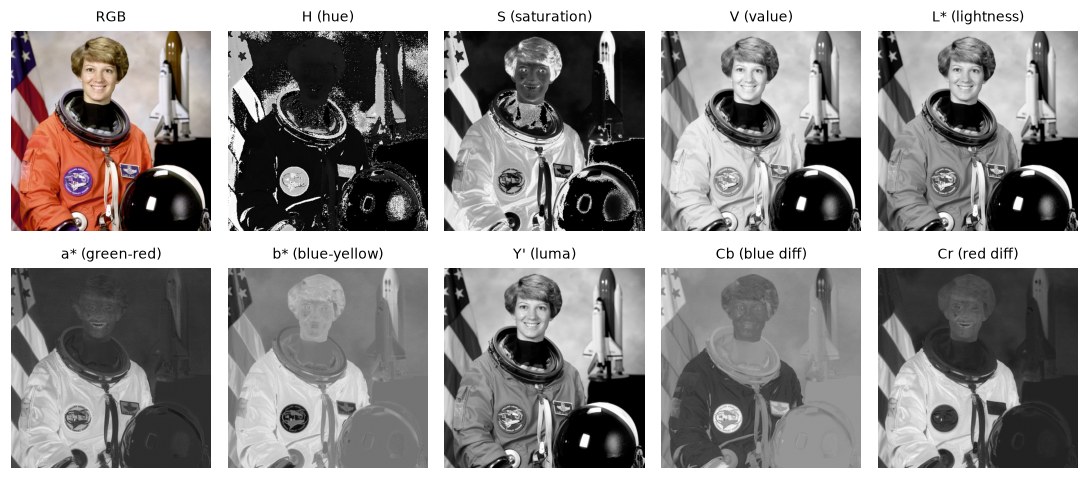
Lightness-type channels (V, L*, Y') carry the detail; the color channels (a*, b*, Cb, Cr) are smooth and low-detail, which is what makes chroma subsampling work.
Two things stand out. The brightness channels look like a normal grayscale photo, full of detail. The color-difference channels (\(a^*\), \(b^*\), \(C_b\), \(C_r\)) are blurry-looking and mostly mid-gray, with only large, smooth regions of color: the red and blue of the flag, the skin. Hue is noisy wherever saturation is low (the white spacesuit), because hue is unstable for nearly gray pixels.
Test how much you lose by storing color at a quarter of the resolution, as JPEG does:
ycc = cv2.cvtColor(rgb, cv2.COLOR_RGB2YCrCb)
small = cv2.resize(ycc[..., 1:], (W // 2, H // 2), interpolation=cv2.INTER_AREA)   # Cr, Cb at half size
ycc_sub = ycc.copy()
ycc_sub[..., 1:] = cv2.resize(small, (W, H), interpolation=cv2.INTER_LINEAR)
back = cv2.cvtColor(ycc_sub, cv2.COLOR_YCrCb2RGB)
print("values stored: full", ycc.size, " subsampled", H * W + small.size,
      f"({(H * W + small.size) / ycc.size:.0%})")
print(f"PSNR after 4:2:0 chroma subsampling: {psnr(back, rgb):.1f} dB")
Half the data, and a PSNR of about 40 dB, which is very hard to see at normal viewing size. The same trick applied to brightness would be obvious.
Gamma and sRGB linearization
Write both directions of the sRGB curve and check the two numbers worth remembering:
def linear_to_srgb(l):
    return np.where(l <= 0.0031308, 12.92 * l, 1.055 * np.power(l, 1 / 2.4) - 0.055)

x = np.linspace(0, 1, 1001)
print("round-trip max error:", float(np.abs(linear_to_srgb(srgb_to_linear(x)) - x).max()))
print("sRGB 0.5 (128) is", round(float(srgb_to_linear(0.5)), 3), "of white's light")
print("50% light is stored as sRGB", round(float(linear_to_srgb(0.5)), 3),
      "=", round(float(linear_to_srgb(0.5)) * 255))
print("pure 2.2 power at 0.5:", round(0.5 ** 2.2, 3))
round-trip max error: 1.1102230246251565e-16
sRGB 0.5 (128) is 0.214 of white's light
50% light is stored as sRGB 0.735 = 188
pure 2.2 power at 0.5: 0.218
Two experiments show why the curve matters. First, why gamma encoding exists: take a ramp that looks smooth and even to the eye, and store it with only 5 bits (32 levels), once with the levels spaced evenly in linear light and once spaced evenly in sRGB. Second, why physics needs linear values: blur the boundary between pure red and pure green, once directly on the sRGB values and once in linear light.
# Experiment 1: 5-bit storage of a smooth ramp of light
ramp_lin = srgb_to_linear(np.tile(np.linspace(0, 1, 512), (40, 1)))   # light values for a ramp that looks even
q = 31
store_linear = np.round(ramp_lin * q) / q                       # 32 levels in linear light
store_srgb = srgb_to_linear(np.round(linear_to_srgb(ramp_lin) * q) / q)   # 32 levels in sRGB
show = lambda lin: linear_to_srgb(lin)                          # what the display receives
print("levels in darkest 10% of light: linear storage",
      len(np.unique(store_linear[0, ramp_lin[0] < 0.1])), "| sRGB storage",
      len(np.unique(store_srgb[0, ramp_lin[0] < 0.1])))

# Experiment 2: blur a red/green edge in sRGB vs linear light
edge = np.zeros((40, 512, 3))
edge[:, :256, 0] = 1.0                                          # red half
edge[:, 256:, 1] = 1.0                                          # green half
k = (151, 1)                                                    # (width, height): blur along x
blur_srgb = cv2.GaussianBlur(edge, k, 0)
blur_lin = linear_to_srgb(cv2.GaussianBlur(srgb_to_linear(edge), k, 0))
mid_s, mid_l = blur_srgb[0, 256], blur_lin[0, 256]
print("middle pixel, blurred in sRGB:  ", mid_s.round(3), " luma", round(float(mid_s @ [0.299, 0.587, 0.114]), 3))
print("middle pixel, blurred in linear:", mid_l.round(3), " luma", round(float(mid_l @ [0.299, 0.587, 0.114]), 3))

fig, axes = plt.subplots(4, 1, figsize=(8, 3.6))
for ax, (im, t) in zip(axes, [(show(store_linear), "5 bits spaced in linear light: coarse steps in the darks"),
                              (show(store_srgb), "5 bits spaced in sRGB: steps even to the eye"),
                              (blur_srgb, "red/green edge blurred in sRGB: dark, muddy band"),
                              (blur_lin, "blurred in linear light: bright yellow transition")]):
    ax.imshow(np.clip(im, 0, 1), cmap="gray", vmin=0, vmax=1, aspect="auto")
    ax.set_title(t, fontsize=9, loc="left")
    ax.axis("off")
plt.tight_layout()
plt.show()
levels in darkest 10% of light: linear storage 4 | sRGB storage 12
middle pixel, blurred in sRGB:   [0.491 0.509 0.   ]  luma 0.446
middle pixel, blurred in linear: [0.73  0.741 0.   ]  luma 0.653
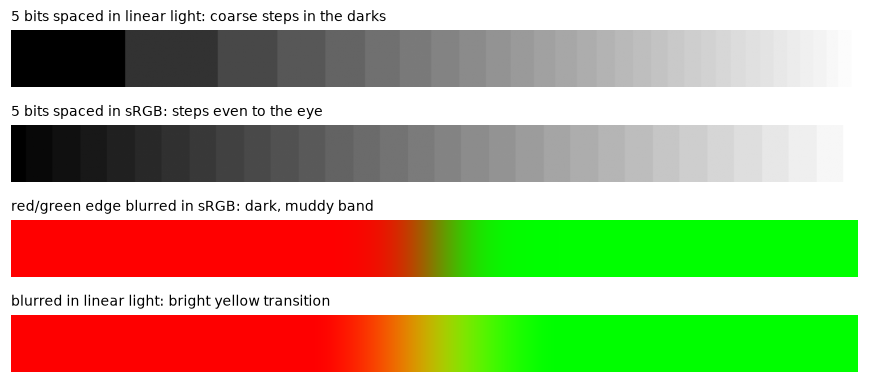
Top two: gamma encoding spends levels where the eye can see them. Bottom two: blurring in sRGB darkens the transition; blurring in linear light keeps it as bright as physical light would be.
With linear storage, the darkest 10% of the light range gets only 4 of the 32 levels, so the left end jumps from black to dark gray in a few big steps, while the right end wastes levels on differences you can barely see. With sRGB storage, it gets 12, and the steps look even all the way along. In the blur, the sRGB version passes through a dark olive at the boundary: half red plus half green values is \((0.5, 0.5, 0)\), which is much less light than half red plus half green light. A defocused camera lens mixes light, so the linear version is what a real blurry photo would show.
Common mistake
Doing physical operations (blending exposures, averaging frames, computing brightness ratios, simulating blur or lighting) directly on sRGB pixel values. Linearize first, operate, then re-encode. For recognition tasks with neural networks, feeding sRGB is standard and fine, as long as training and inference agree.
Formats: real file sizes and JPEG artifacts
Save the astronaut in several formats and qualities, measure the actual file sizes on disk, and decode each file to measure the error:
os.makedirs("formats", exist_ok=True)
bgr = cv2.cvtColor(rgb, cv2.COLOR_RGB2BGR)
raw_bytes = rgb.nbytes
jobs = [("png", ".png", [cv2.IMWRITE_PNG_COMPRESSION, 9])]
jobs += [(f"jpeg q{q}", ".jpg", [cv2.IMWRITE_JPEG_QUALITY, q]) for q in (95, 75, 50, 20, 5)]
jobs += [("webp q80", ".webp", [cv2.IMWRITE_WEBP_QUALITY, 80]),
         ("webp lossless", ".webp", [cv2.IMWRITE_WEBP_QUALITY, 101])]

decoded = {}
print(f"{'format':<14}{'bytes':>9}{'ratio':>8}{'PSNR dB':>9}")
for name, ext, params in jobs:
    path = os.path.join("formats", name.replace(" ", "_") + ext)
    cv2.imwrite(path, bgr, params)
    size = os.path.getsize(path)
    back = cv2.cvtColor(cv2.imread(path), cv2.COLOR_BGR2RGB)
    decoded[name] = back
    p = psnr(back, rgb)
    print(f"{name:<14}{size:>9,}{raw_bytes / size:>7.1f}x{('lossless' if np.isinf(p) else f'{p:.1f}'):>9}")
print(f"raw array: {raw_bytes:,} bytes")
format            bytes   ratio  PSNR dB
png             445,428    1.8x lossless
jpeg q95         99,308    7.9x     38.3
jpeg q75         40,240   19.5x     34.0
jpeg q50         27,748   28.3x     32.1
jpeg q20         16,678   47.2x     29.3
jpeg q5           8,293   94.8x     24.1
webp q80         31,724   24.8x     35.6
webp lossless   340,874    2.3x lossless
raw array: 786,432 bytes
(In OpenCV, a WebP quality above 100 selects lossless mode.) Lossless formats manage only about a 2× reduction on a photo, because sensor noise and fine texture are genuinely unpredictable. JPEG gets an order of magnitude more by discarding detail. Now look at what was discarded:
crop = (slice(80, 180), slice(180, 280))            # the face, 100 x 100
show_q = ["jpeg q95", "jpeg q50", "jpeg q20", "jpeg q5"]
fig, axes = plt.subplots(1, 5, figsize=(10, 2.4))
for ax, name in zip(axes[:4], show_q):
    ax.imshow(decoded[name][crop], interpolation="nearest")
    ax.set_title(f"{name}: {psnr(decoded[name], rgb):.1f} dB", fontsize=9)
err = np.abs(decoded["jpeg q20"].astype(int) - rgb).sum(axis=2)
axes[4].imshow(err[crop], cmap="magma", interpolation="nearest")
axes[4].set_title("|q20 - original|", fontsize=9)
for ax in axes:
    ax.axis("off")
plt.tight_layout()
plt.show()
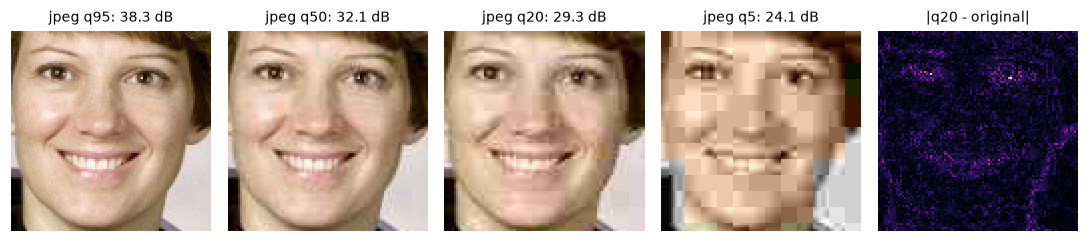
JPEG artifacts grow as quality drops: 8 x 8 blocks, ringing near edges, and smeared color. The error map shows the block grid and the concentration of error at edges.
At quality 95 the crop is indistinguishable from the original. By quality 20, smooth skin breaks into flat 8 × 8 tiles, and edges such as the eyes and hairline get ringing. At quality 5, the colors bleed across blocks. That's the drone-camera problem from the story: fine texture is exactly what JPEG removes first.
To see why JPEG can discard so much, take one 8 × 8 block, apply the DCT (cv2.dct uses exactly the scaling in the formula above), and count how many coefficients matter:
gray = cv2.cvtColor(rgb, cv2.COLOR_RGB2GRAY).astype(np.float32)
block = gray[120:128, 216:224] - 128                 # one block from the cheek, centered on 0
coef = cv2.dct(block)
energy = coef ** 2
order = np.sort(energy.ravel())[::-1]
print("DC coefficient F(0,0):", round(float(coef[0, 0]), 1), " = 8 x block mean:",
      round(float(8 * block.mean()), 1))
print("share of energy in the top 3 of 64 coefficients:", round(float(order[:3].sum() / order.sum()), 4))
print("coefficients with |F| < 2:", int((np.abs(coef) < 2).sum()), "of 64")
print("inverse DCT recovers the block:", np.allclose(cv2.idct(coef), block, atol=1e-3))
DC coefficient F(0,0): 522.1  = 8 x block mean: 522.1
share of energy in the top 3 of 64 coefficients: 0.9889
coefficients with |F| < 2: 23 of 64
inverse DCT recovers the block: True
In this fairly smooth block, the top 3 coefficients hold about 99% of the energy, and the other 61 share the remaining 1%; about a third of them are almost exactly zero. Quantization rounds the tiny ones to zero, and the entropy coder stores long runs of zeros in a few bits. Textured blocks have more significant coefficients, so they cost more bits or lose more detail.
Finally, check bit depth. PNG can store 16-bit values exactly, which matters for depth maps, medical images, and RAW-derived data:
deep = (np.linspace(0, 65535, 256 * 256).reshape(256, 256)).astype(np.uint16)
cv2.imwrite("formats/deep16.png", deep)
back16 = cv2.imread("formats/deep16.png", cv2.IMREAD_UNCHANGED)
back8 = cv2.imread("formats/deep16.png")                     # default flag: converts to 8-bit BGR
print("16-bit PNG round trip:", back16.dtype, back16.shape, "exact:", np.array_equal(back16, deep))
print("default imread gives:  ", back8.dtype, back8.shape, "max", back8.max())
16-bit PNG round trip: uint16 (256, 256) exact: True
default imread gives:   uint8 (256, 256, 3) max 255
Common mistake
Reading a 16-bit image (a depth map, a medical scan, a 16-bit TIFF) with plain cv2.imread(path). The default flag converts it to 8-bit, 3-channel BGR, silently throwing away the extra precision. Use cv2.IMREAD_UNCHANGED (or cv2.IMREAD_ANYDEPTH) and check dtype after loading.
Exercises
Exercise 1: Bits and SNR (easy)
(a) Using the 6.02 dB-per-bit rule, what's the quantization SNR of a 12-bit RAW file and a 16-bit PNG? (b) A 12-bit RAW value of 2,000 is converted to 8 bits by dividing by 16 and rounding. What 8-bit value results, and what is the step size \(\Delta\) of the 8-bit image in units of the original 12-bit scale?
Solution
(a) 12 bits: \(6.02 \times 12 \approx 72.2\) dB. 16 bits: \(6.02 \times 16 \approx 96.3\) dB. (In practice, a sensor's own noise is far above its quantization noise at 12–14 bits.)
(b) \(2000 / 16 = 125\), so the 8-bit value is 125. Each 8-bit step spans \(4096 / 256 = 16\) original units, so \(\Delta = 16\), and the RMS rounding error is about \(16 / \sqrt{12} \approx 4.6\) original units. (A real camera would also apply a gamma curve before going to 8 bits, rather than dividing linearly.)
Exercise 2: HSV by hand (easy)
Compute the HSV of the color \((R, G, B) = (255, 128, 0)\) in degrees and fractions. Then give the values OpenCV's 8-bit COLOR_RGB2HSV would return. Check with code.
Solution
In \([0, 1]\): \(R = 1\), \(G \approx 0.502\), \(B = 0\). \(M = 1\), \(m = 0\), \(C = 1\). The max is \(R\), so \(H = 60^\circ \times ((0.502 - 0)/1 \bmod 6) \approx 30.1^\circ\) (orange). \(S = C/M = 1\), \(V = 1\).
OpenCV 8-bit: \(H = 30.1 / 2 \approx 15\), \(S = 255\), \(V = 255\).
Exercise 3: Which Bayer pattern? (medium)
You're given a raw mosaic but not its pattern. Write a function that tries all four patterns (RGGB, BGGR, GRBG, GBRG) with OpenCV, and picks the one whose demosaiced result has the most plausible colors. Test it on a BGGR mosaic made from data.coffee(). Hint: the right pattern gives the lowest PSNR loss against the truth, but without ground truth, try a proxy such as "the two green channels in each 2 × 2 tile should be similar", which identifies the green positions.
Solution
With ground truth available, just compare:
def make_mosaic(rgb, pattern):
    idx = {"R": 0, "G": 1, "B": 2}
    out = np.zeros(rgb.shape[:2], np.uint8)
    for (dr, dc), ch in zip([(0, 0), (0, 1), (1, 0), (1, 1)], pattern):
        out[dr::2, dc::2] = rgb[dr::2, dc::2, idx[ch]]
    return out

codes = {"RGGB": cv2.COLOR_BAYER_RGGB2RGB, "BGGR": cv2.COLOR_BAYER_BGGR2RGB,
         "GRBG": cv2.COLOR_BAYER_GRBG2RGB, "GBRG": cv2.COLOR_BAYER_GBRG2RGB}
coffee = data.coffee()
mos = make_mosaic(coffee, "BGGR")
scores = {p: float(psnr(cv2.cvtColor(mos, c)[2:-2, 2:-2], coffee[2:-2, 2:-2])) for p, c in codes.items()}
print({p: round(s, 1) for p, s in scores.items()}, "->", max(scores, key=scores.get))

# without ground truth: the green diagonal of each tile should be the most similar pair
tiles = mos.astype(float)
diag_main = np.abs(tiles[0::2, 0::2] - tiles[1::2, 1::2]).mean()   # (0,0) vs (1,1)
diag_anti = np.abs(tiles[0::2, 1::2] - tiles[1::2, 0::2]).mean()   # (0,1) vs (1,0)
print("greens on", "main diagonal (GRBG/GBRG)" if diag_main < diag_anti else "anti-diagonal (RGGB/BGGR)")
The proxy narrows it to two patterns. To choose between RGGB and BGGR without ground truth, you'd need a prior, such as "skies are blue" or "the scene is roughly gray on average"; in real life, you read the pattern from the RAW file's metadata.
Exercise 4: Generation loss (medium)
Save the astronaut as JPEG at quality 75, read it back, and repeat 20 times. Track the PSNR against the original after each round. Then repeat the experiment, but before the \(k\)-th save, shift the image by \(k \bmod 8\) pixels down and right with np.roll (and shift it back after loading). What happens, and why?
Solution
def generations(img, n, shift):
    cur = img.copy()
    out = []
    for k in range(n):
        s = k % 8 if shift else 0                       # move the 8 x 8 grid each time
        moved = np.roll(cur, (s, s), axis=(0, 1))
        ok, buf = cv2.imencode(".jpg", moved, [cv2.IMWRITE_JPEG_QUALITY, 75])
        cur = np.roll(cv2.imdecode(buf, cv2.IMREAD_COLOR), (-s, -s), axis=(0, 1))
        out.append(psnr(cur, img))
    return out

plain = generations(bgr, 20, shift=False)
shifted = generations(bgr, 20, shift=True)
print("no shift   : gen 1 %.2f, gen 20 %.2f" % (plain[0], plain[-1]))
print("grid shift : gen 1 %.2f, gen 20 %.2f" % (shifted[0], shifted[-1]))
Without shifting, most of the loss happens in the first save. Later saves see a block that's already been quantized on the same 8 × 8 grid with the same tables, so the coefficients land near the same quantized values again and little more is lost. Moving the image relative to the grid means every save quantizes different blocks, so the losses compound: about 8 dB lost over 20 generations, versus 0.3 dB without shifting. That's what happens when people crop, resize, or edit and re-save JPEGs repeatedly. Keep a lossless master copy, and only export to JPEG at the end.
Exercise 5: Delta E (hard)
Implement \(\Delta E^*_{ab}\) using your hand-written Lab conversion. Then find two pairs of 8-bit sRGB colors that are the same Euclidean distance apart in RGB (say, 30 units along one channel) but differ a lot in \(\Delta E\): one pair in dark blues, one in mid greens. What does this tell you about using RGB distance to measure color difference?
Solution
def rgb8_to_lab(c):
    v = np.asarray(c, dtype=np.float64).reshape(1, 3) / 255
    xyz = srgb_to_linear(v) @ M_xyz.T
    t = xyz / white
    ft = np.where(t > d ** 3, np.cbrt(t), t / (3 * d ** 2) + 4 / 29)
    return np.array([116 * ft[0, 1] - 16, 500 * (ft[0, 0] - ft[0, 1]), 200 * (ft[0, 1] - ft[0, 2])])

def delta_e(c1, c2):
    return float(np.linalg.norm(rgb8_to_lab(c1) - rgb8_to_lab(c2)))

print("dark blue  (0,0,40) vs (0,0,70):    dE =", round(delta_e((0, 0, 40), (0, 0, 70)), 1))
print("mid green  (0,160,0) vs (0,190,0):  dE =", round(delta_e((0, 160, 0), (0, 190, 0)), 1))
print("light gray (200,200,200) vs (230,230,230): dE =", round(delta_e((200,) * 3, (230,) * 3), 1))
dark blue  (0,0,40) vs (0,0,70):    dE = 25.1
mid green  (0,160,0) vs (0,190,0):  dE = 15.2
light gray (200,200,200) vs (230,230,230): dE = 10.7
The same 30-unit RGB step gives a \(\Delta E\) of about 25 in the dark blues but only about 11 between light grays: more than a factor of 2. Steps in dark colors are much more visible than the same steps in light ones (partly because of the sRGB curve, partly because of how Lab models perception). RGB distance doesn't track perceived difference consistently, so use Lab (or a refined formula like CIEDE2000) when "how different do these colors look?" matters, such as color quality control.
Check yourself
-
Why does a camera sensor need a color filter array, and why does the Bayer pattern have twice as many green filters?
Answer
Photosites count photons of any visible wavelength, so they can't distinguish color by themselves. The filter makes each one measure one color. Green gets half the photosites because human vision is most sensitive to green, which carries most of the perceived detail and brightness.
-
What does demosaicing do, and what artifacts does simple bilinear demosaicing produce?
Answer
It estimates the two missing color values at each pixel from neighboring measurements. Bilinear demosaicing averages across edges, producing blur, zipper patterns, and false color fringes at fine detail.
-
What causes aliasing when you shrink an image, and how do you prevent it?
Answer
Detail finer than the new pixel grid can represent (less than 2 samples per repetition) gets folded into false, coarser patterns. Prevent it by blurring (low-pass filtering) before subsampling, or by averaging over each output pixel's footprint, as
INTER_AREAand antialiased resizers do. -
What's the RMS quantization error for a step size \(\Delta\), and how much SNR does each extra bit add?
Answer
\(\Delta / \sqrt{12}\), from the variance \(\Delta^2 / 12\) of a uniform error. Each extra bit halves \(\Delta\), adding about 6.02 dB of SNR.
-
An sRGB pixel value is 128. What fraction of white's light does it represent? Why aren't stored values linear?
Answer
About 21% (0.214). Values are gamma-encoded so that the 256 codes are spaced roughly evenly in perceived brightness, avoiding visible banding in the darks while not wasting codes in the brights.
-
In OpenCV's 8-bit HSV, what is the range of H, and what is 8-bit hue for pure green?
Answer
0–179 (degrees divided by 2). Pure green is 120°, so 60.
-
Why does JPEG convert to YCbCr and subsample the chroma channels?
Answer
Human vision resolves far less detail in color than in brightness. Separating luma from chroma lets JPEG store chroma at lower resolution (4:2:0 halves the data) with little visible loss.
-
You need to store segmentation masks with class IDs 0–20. Which format, and why not JPEG?
Answer
PNG (8-bit, single channel), which is lossless. JPEG would change the class IDs near every boundary, creating invalid or wrong labels, because it's lossy and smooths edges.
Key takeaways
- Sensors count photons linearly, with noise, and can't see color. A Bayer filter plus demosaicing produces color, and the ISP's white balance, color correction, tone curve, and compression all change the numbers.
- Sampling a scene on a grid can alias fine detail into false patterns; blur or average before downsampling.
- Quantizing with step \(\Delta\) adds error with RMS \(\Delta/\sqrt{12}\); each bit adds about 6 dB of SNR. Too few bits cause banding.
- HSV, YCbCr, and Lab separate brightness from color in different ways. Know each library's ranges, especially OpenCV's 8-bit hue (0–179) and Lab scaling.
- Image files store gamma-encoded sRGB values, not light. Linearize before any physical operation such as blending, blurring, or averaging exposures.
- PNG is lossless and the right choice for masks and exact data; JPEG is lossy, built on YCbCr, chroma subsampling, and an 8 × 8 DCT, and its artifacts can hurt models trained on cleaner images.
Further reading
- Richard Szeliski, Computer Vision: Algorithms and Applications, 2nd edition, chapter 2 ("Image formation"). Free at szeliski.org/Book.
- Charles Poynton, Digital Video and HD: Algorithms and Interfaces, 2nd edition (2012). The definitive explanation of gamma, luma, and YCbCr.
- Gregory K. Wallace, "The JPEG Still Picture Compression Standard", Communications of the ACM, 1991.
- OpenCV documentation, "Color conversions" (the
imgprocmodule's color space reference), for the exact formulas and ranges OpenCV uses.
Next
You now know what the numbers in an image mean. Next, learn to manipulate them fluently as NumPy arrays: Images as arrays.